> ## Documentation Index
> Fetch the complete documentation index at: https://docs.cluely.com/llms.txt
> Use this file to discover all available pages before exploring further.
# 3. Team Wide Kickoff
> Get the team ramped up.
## Welcome to Your Team's AI-Powered Meeting Assistant
This guide will help your entire team get up and running with Cluely quickly and effectively. Follow these steps to ensure everyone maximizes their meeting performance from day one.
Every team member should download Cluely from [cluely.com/downloads](https://cluely.com/downloads).
**System Requirements:**
macOS
* macOS 10.15 (Catalina) or later
* Apple Silicon or Intel Processor
* 500 MB free disk space
* 8 GB RAM recommended
Windows
* Windows 11
* x64 (64-bit) processor
* 500 MB free disk space
* 8 GB RAM recommended
Installation typically takes 2-3 minutes. If you encounter any issues, your admin can connect you with our support team immediately.
Check your work email for your Cluely enterprise invitation. Log in using your enterprise work email or SSO credentials.
Use your work email address to ensure you join your organization's enterprise account with access to custom knowledge base and team-specific prompts.
**This is your most important setup step.** Link your Google Calendar to unlock Cluely's full potential:
* Receive intelligent pre-call briefs before every meeting
* Get automatic meeting alerts and preparation reminders
* Enable seamless integration with your existing workflow
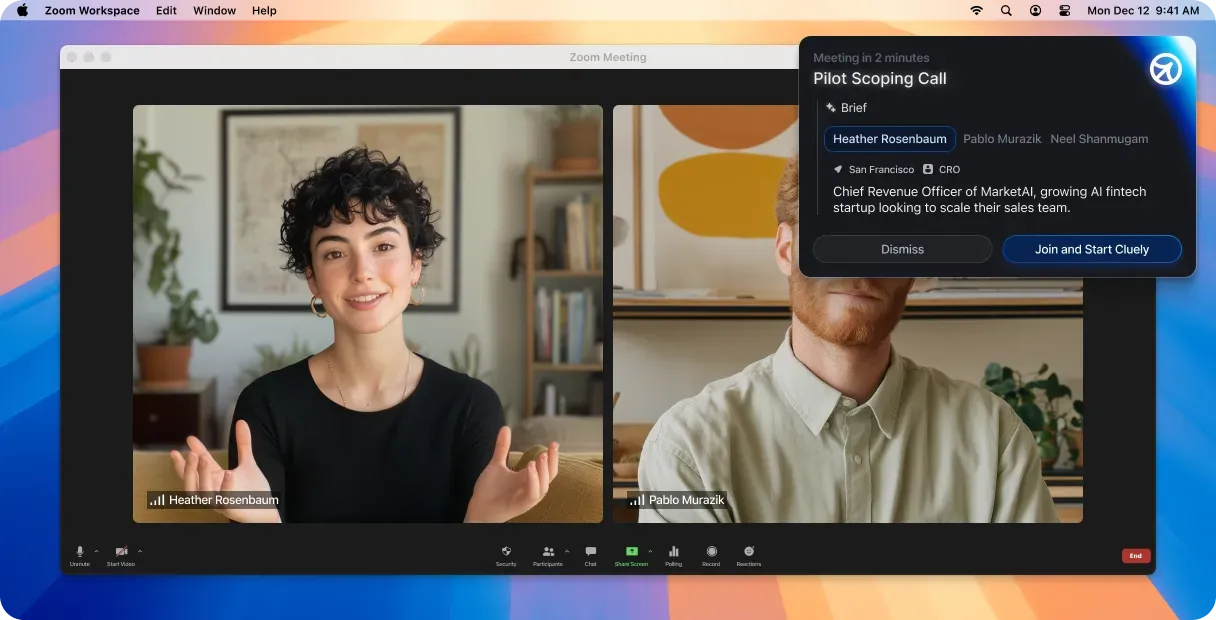 Calendar integration is what transforms Cluely from a simple tool into your intelligent meeting companion. Don't skip this step!
Your admin has already configured Cluely with your organization's knowledge base and team-specific prompts:
* **Team Prompts**: Customized guidance specific to your role (Sales, Support, Customer Success, etc.)
* **Active Prompt Selection**: You can switch between available team prompts based on your meeting type
Navigate to your settings to see which prompts are available to your team and select your default preference.
**Start with a low-stakes meeting** to get comfortable:
1. Open Cluely before your next internal meeting or 1:1
2. Review the pre-call brief that appears
3. Keep Cluely open during the meeting to see live insights
4. After the call, review the summary and action items
Calendar integration is what transforms Cluely from a simple tool into your intelligent meeting companion. Don't skip this step!
Your admin has already configured Cluely with your organization's knowledge base and team-specific prompts:
* **Team Prompts**: Customized guidance specific to your role (Sales, Support, Customer Success, etc.)
* **Active Prompt Selection**: You can switch between available team prompts based on your meeting type
Navigate to your settings to see which prompts are available to your team and select your default preference.
**Start with a low-stakes meeting** to get comfortable:
1. Open Cluely before your next internal meeting or 1:1
2. Review the pre-call brief that appears
3. Keep Cluely open during the meeting to see live insights
4. After the call, review the summary and action items
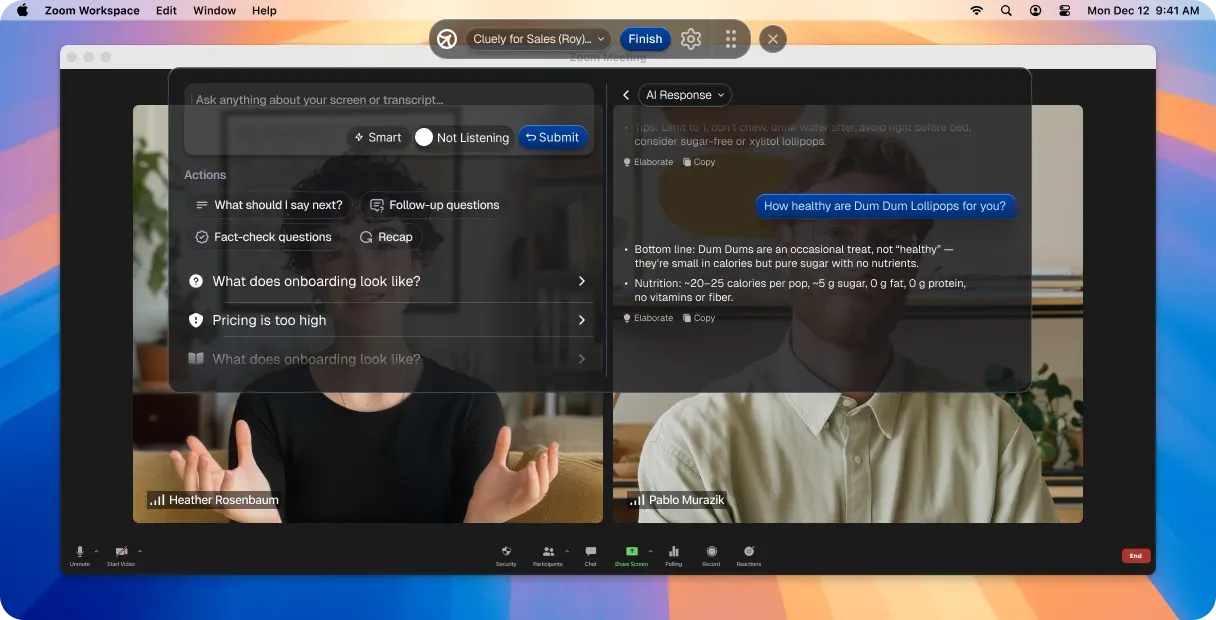 Your first few meetings are about building the habit. Don't worry about using every feature immediately—focus on making Cluely part of your routine.
**Week 1 Goal**: Use Cluely for every meeting
* Check pre-call briefs 5 minutes before each meeting
* Keep Cluely open during calls for real-time assistance
* Review post-call summaries and action items
* Share feedback with your team about what's working
Studies show it takes 21 days to form a new habit. Your admin will check in with the team regularly during your first month to ensure everyone stays on track. **On Cluely, users notice results and time-saved after just 7 days.**
***
## What Team Members Can Do vs. Admin Features
**What you have access to:**
* View and use all team-specific prompts
* Switch between different prompt modes for different meeting types
* Access live meeting insights and coaching
* Review personal meeting summaries and analytics
* Use organization knowledge base for meeting prep
* Connect personal calendar and integrations
**Key Feature**: You can change which team prompt is active for your meetings, allowing you to customize Cluely's guidance based on whether you're in a sales call, support session, or internal meeting.
**What only admins can do:**
* Edit organization knowledge base
* Create and modify team prompts
* View organization-wide analytics
* Manage user permissions and team assignments
* Configure integrations and enterprise settings
* Access detailed team performance reports
**Need changes?** Contact your admin if you need new prompts created or knowledge base updates.
***
## Team Adoption Best Practices
### Week 1: Foundation Building
Use Cluely for your daily standups and team meetings. Practice with familiar, low-pressure situations first.
Verify everyone has connected their calendar and is receiving pre-call briefs. This is critical for success.
### Week 2-3: Confidence Building
Start using Cluely for client calls, prospect meetings, and external conversations where AI insights add real value.
Share wins and tips with teammates. What insights have been most helpful? Which prompts work best for different scenarios?
### Week 4+: Optimization
Explore switching between different team prompts mid-meeting, using specific knowledge base articles for prep, and leveraging post-call action items.
Provide feedback to your admin about prompt effectiveness, missing knowledge base content, and feature requests.
***
## Common Getting Started Questions
You can open Cluely at any point during a meeting and it will begin providing insights immediately. However, you'll miss the valuable pre-call brief, so try to build the habit of opening it 5 minutes before each meeting.
Your admin has configured prompts specific to your role and common meeting scenarios. Experiment with different options:
* Use sales prompts for prospect and client calls
* Use support prompts for customer issue resolution
* Use general prompts for internal meetings and 1:1s
You can switch prompts before or even during meetings.
No, your meeting data and insights are private to you. Only admins can see organization-wide analytics and trends, not individual meeting details.
The AI learns from your organization's knowledge base and team prompts, but it's still learning. Always use your judgment and provide feedback to your admin about suggestions that don't align with company practices.
***
## Success Metrics & What to Expect
### Individual Success Indicators
* **Week 1**: Using Cluely for 80%+ of meetings
* **Week 2**: Actively reviewing and acting on pre-call briefs
* **Week 3**: Referencing live insights during conversations
* **Month 1**: Seeing measurable improvements in meeting outcomes
### Team Success Indicators
Your admin will be tracking:
* Team-wide adoption rates and engagement
* Meeting outcome improvements
* Most effective prompt usage patterns
* Knowledge base utilization
Your admin will schedule regular check-ins during your first month to ensure everyone is getting maximum value from Cluely. Don't hesitate to ask questions or share feedback!
***
## Getting Help & Support
**Contact your admin first** - they have direct access to our enterprise support team and can resolve most issues quickly.
**Ask during team meetings** - your admin can provide additional training or schedule group sessions for common questions.
### Enterprise Support Resources
As part of your organization's enterprise plan, you have access to:
* Priority technical support through your admin
* Regular team training sessions and office hours
* Custom onboarding materials specific to your team's use cases
* Direct feedback channels for product improvements
**Remember**: Your success is our success. We're invested in making sure every team member gets maximum value from Cluely, so never hesitate to ask for help or additional training.
Your first few meetings are about building the habit. Don't worry about using every feature immediately—focus on making Cluely part of your routine.
**Week 1 Goal**: Use Cluely for every meeting
* Check pre-call briefs 5 minutes before each meeting
* Keep Cluely open during calls for real-time assistance
* Review post-call summaries and action items
* Share feedback with your team about what's working
Studies show it takes 21 days to form a new habit. Your admin will check in with the team regularly during your first month to ensure everyone stays on track. **On Cluely, users notice results and time-saved after just 7 days.**
***
## What Team Members Can Do vs. Admin Features
**What you have access to:**
* View and use all team-specific prompts
* Switch between different prompt modes for different meeting types
* Access live meeting insights and coaching
* Review personal meeting summaries and analytics
* Use organization knowledge base for meeting prep
* Connect personal calendar and integrations
**Key Feature**: You can change which team prompt is active for your meetings, allowing you to customize Cluely's guidance based on whether you're in a sales call, support session, or internal meeting.
**What only admins can do:**
* Edit organization knowledge base
* Create and modify team prompts
* View organization-wide analytics
* Manage user permissions and team assignments
* Configure integrations and enterprise settings
* Access detailed team performance reports
**Need changes?** Contact your admin if you need new prompts created or knowledge base updates.
***
## Team Adoption Best Practices
### Week 1: Foundation Building
Use Cluely for your daily standups and team meetings. Practice with familiar, low-pressure situations first.
Verify everyone has connected their calendar and is receiving pre-call briefs. This is critical for success.
### Week 2-3: Confidence Building
Start using Cluely for client calls, prospect meetings, and external conversations where AI insights add real value.
Share wins and tips with teammates. What insights have been most helpful? Which prompts work best for different scenarios?
### Week 4+: Optimization
Explore switching between different team prompts mid-meeting, using specific knowledge base articles for prep, and leveraging post-call action items.
Provide feedback to your admin about prompt effectiveness, missing knowledge base content, and feature requests.
***
## Common Getting Started Questions
You can open Cluely at any point during a meeting and it will begin providing insights immediately. However, you'll miss the valuable pre-call brief, so try to build the habit of opening it 5 minutes before each meeting.
Your admin has configured prompts specific to your role and common meeting scenarios. Experiment with different options:
* Use sales prompts for prospect and client calls
* Use support prompts for customer issue resolution
* Use general prompts for internal meetings and 1:1s
You can switch prompts before or even during meetings.
No, your meeting data and insights are private to you. Only admins can see organization-wide analytics and trends, not individual meeting details.
The AI learns from your organization's knowledge base and team prompts, but it's still learning. Always use your judgment and provide feedback to your admin about suggestions that don't align with company practices.
***
## Success Metrics & What to Expect
### Individual Success Indicators
* **Week 1**: Using Cluely for 80%+ of meetings
* **Week 2**: Actively reviewing and acting on pre-call briefs
* **Week 3**: Referencing live insights during conversations
* **Month 1**: Seeing measurable improvements in meeting outcomes
### Team Success Indicators
Your admin will be tracking:
* Team-wide adoption rates and engagement
* Meeting outcome improvements
* Most effective prompt usage patterns
* Knowledge base utilization
Your admin will schedule regular check-ins during your first month to ensure everyone is getting maximum value from Cluely. Don't hesitate to ask questions or share feedback!
***
## Getting Help & Support
**Contact your admin first** - they have direct access to our enterprise support team and can resolve most issues quickly.
**Ask during team meetings** - your admin can provide additional training or schedule group sessions for common questions.
### Enterprise Support Resources
As part of your organization's enterprise plan, you have access to:
* Priority technical support through your admin
* Regular team training sessions and office hours
* Custom onboarding materials specific to your team's use cases
* Direct feedback channels for product improvements
**Remember**: Your success is our success. We're invested in making sure every team member gets maximum value from Cluely, so never hesitate to ask for help or additional training.