> ## Documentation Index
> Fetch the complete documentation index at: https://docs.cluely.com/llms.txt
> Use this file to discover all available pages before exploring further.
# Meeting Notes
> Access detailed meeting notes, AI insights, and transcripts from your past meetings
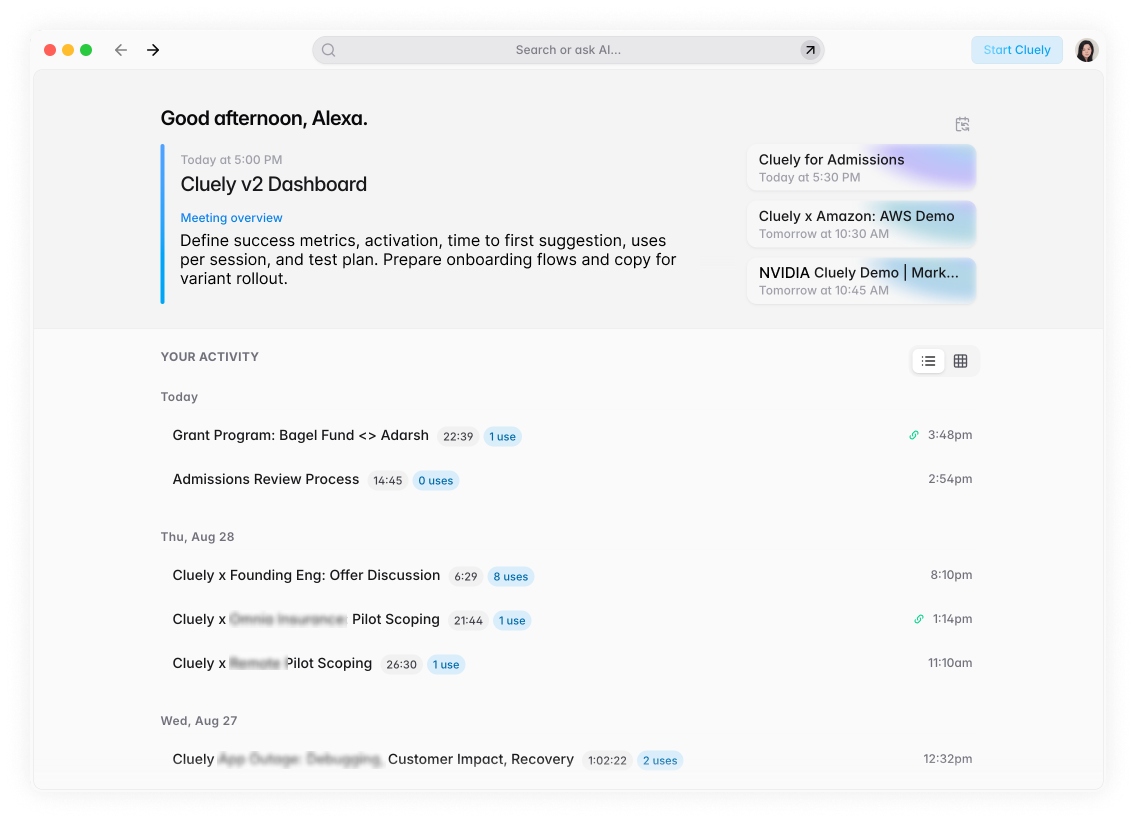 ## Meeting Notes & AI Insights
Click into any of your past meetings from the dashboard. See auto generated detailed notes, AI drafted next steps, and full transcripts.
## Activity Section
The Activity section is the default Home view. It lists meeting items that are created when you start a listening session and then stop it—Cluely generates a summary from the session's meaningful audio content. Open any meeting item to see:
### Meeting Item Features
* **Metrics** — meeting date
* **Resume Session** — continue the listening session (useful if the meeting continues and you want to keep the accumulated context; very long transcripts can slow down responses)
* **Share notes** — generate a public link to share the meeting summary
* **Delete** — remove the meeting from Activity
* **Next Steps** — e.g., write a follow-up email (based on the session)
* **Manual edit** — click into the summary text to edit it directly
## How to Export Transcripts
Need to export your transcripts from Cluely? Open a meeting note and click **View Transcript**. Then click the **Copy Icon** to copy the full transcript.
## Meeting Summary Features
### Auto-Generated Content
* **Detailed Notes**: Comprehensive summaries of key discussion points
* **AI Drafted Next Steps**: Actionable follow-up items generated by AI
* **Full Transcripts**: Complete conversation records with speaker identification
* **Key Insights**: Important takeaways and decisions made during the meeting
### Interactive Elements
* **Editable Summaries**: Click directly into summary text to make manual edits
* **Shareable Links**: Generate public links to share meeting summaries with team members
* **Session Continuation**: Resume listening sessions for extended meetings
* **Export Options**: Copy transcripts for external use
## Accessing Meeting Notes
### From Dashboard
1. Open the Cluely dashboard
2. Navigate to the **Activity** section (default Home view)
3. Click on any meeting item to view details
4. Access notes, transcripts, and AI insights
### From Command Bar
1. During an active session, use the command bar
2. Access recent meeting summaries
3. Quick access to session controls and notes
Long transcripts may slow down AI responses. Consider using the "Resume
Session" feature for very long meetings to maintain optimal performance.
Meeting notes are only generated for sessions that have been properly started
and stopped. Make sure to end your listening sessions to generate summaries.
## Meeting Notes & AI Insights
Click into any of your past meetings from the dashboard. See auto generated detailed notes, AI drafted next steps, and full transcripts.
## Activity Section
The Activity section is the default Home view. It lists meeting items that are created when you start a listening session and then stop it—Cluely generates a summary from the session's meaningful audio content. Open any meeting item to see:
### Meeting Item Features
* **Metrics** — meeting date
* **Resume Session** — continue the listening session (useful if the meeting continues and you want to keep the accumulated context; very long transcripts can slow down responses)
* **Share notes** — generate a public link to share the meeting summary
* **Delete** — remove the meeting from Activity
* **Next Steps** — e.g., write a follow-up email (based on the session)
* **Manual edit** — click into the summary text to edit it directly
## How to Export Transcripts
Need to export your transcripts from Cluely? Open a meeting note and click **View Transcript**. Then click the **Copy Icon** to copy the full transcript.
## Meeting Summary Features
### Auto-Generated Content
* **Detailed Notes**: Comprehensive summaries of key discussion points
* **AI Drafted Next Steps**: Actionable follow-up items generated by AI
* **Full Transcripts**: Complete conversation records with speaker identification
* **Key Insights**: Important takeaways and decisions made during the meeting
### Interactive Elements
* **Editable Summaries**: Click directly into summary text to make manual edits
* **Shareable Links**: Generate public links to share meeting summaries with team members
* **Session Continuation**: Resume listening sessions for extended meetings
* **Export Options**: Copy transcripts for external use
## Accessing Meeting Notes
### From Dashboard
1. Open the Cluely dashboard
2. Navigate to the **Activity** section (default Home view)
3. Click on any meeting item to view details
4. Access notes, transcripts, and AI insights
### From Command Bar
1. During an active session, use the command bar
2. Access recent meeting summaries
3. Quick access to session controls and notes
Long transcripts may slow down AI responses. Consider using the "Resume
Session" feature for very long meetings to maintain optimal performance.
Meeting notes are only generated for sessions that have been properly started
and stopped. Make sure to end your listening sessions to generate summaries.